Language Translator
Project Overview & Goal
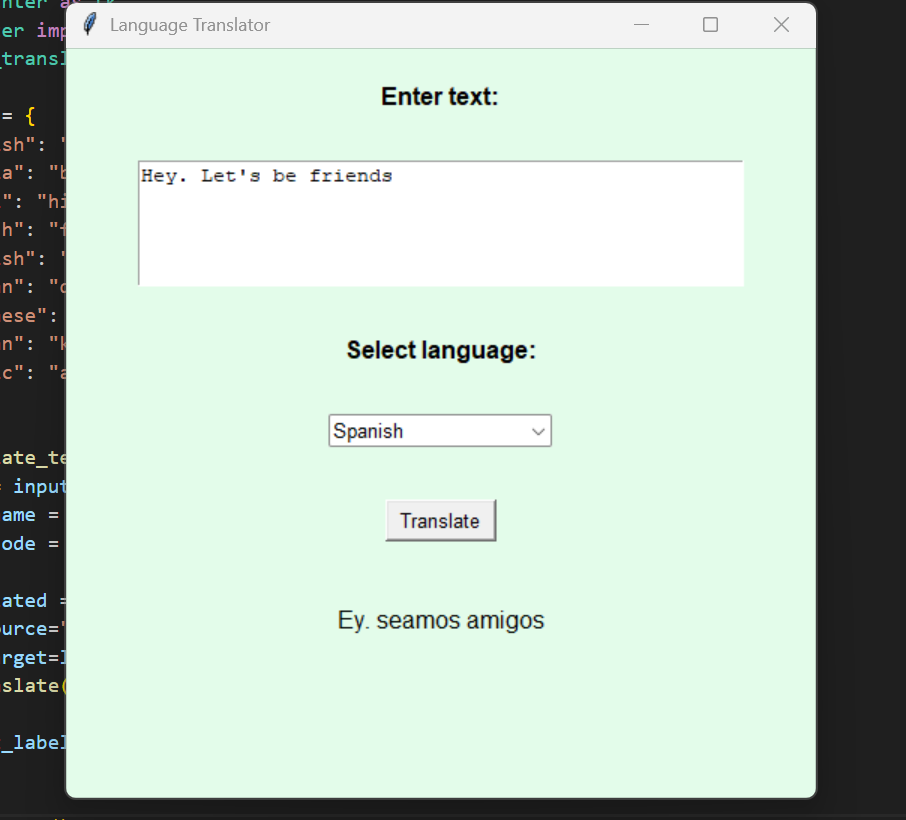
For this project, I developed a desktop-based language translator application using Python and Tkinter. The program allows users to enter a sentence and translate it into multiple languages using the deep_translator library with Google Translate.
The goal of this project was to:
Build another interactive GUI application
Work with external libraries
Understand how translation systems operate
Explore beginner-level AI-related tools
The Problem Solved
I wanted to create a program that:
Accepts user input
Allows language selection
Translates text automatically
Displays the result instantly
Instead of building everything from scratch, I learned how to use an existing translation library and integrate it into my own application.
This project helped me understand how developers connect their programs to real-world language processing systems.
Visuals & Explanation
Language Used
Python
Libraries Used
tkinter: GUI design
ttk: Dropdown box
deep_translator: Language translation
GoogleTranslator: Translation engine
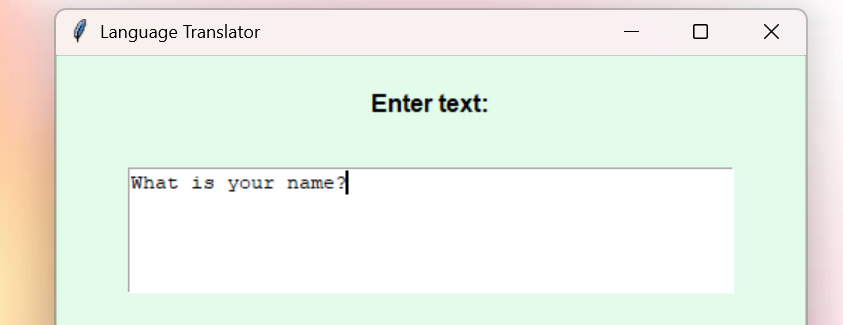
In the first section of the language translator, the user is provided with a large text input box where they can type in any sentence or paragraph they want to translate. This input box is designed to be easy to use and spacious, allowing users to freely enter as much text as they need without restrictions. The text entered here will later be processed and translated into the language the user selects. I customized the input box by setting its width and height to give users plenty of space to type, and by adding padding around it so it looks clean and easy to use within the window. This makes the input area more comfortable for writing longer sentences or paragraphs.
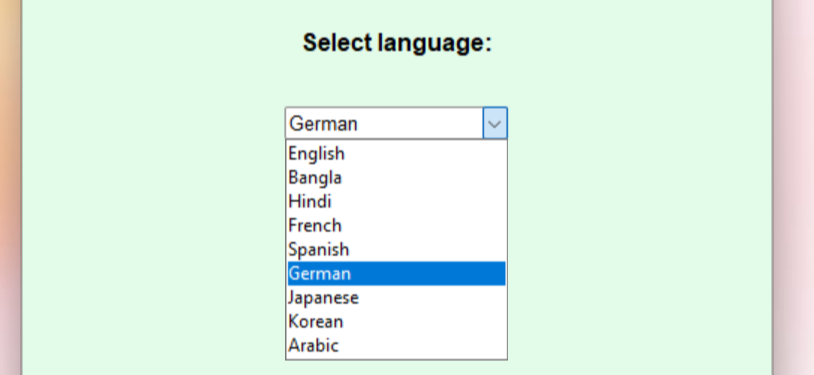
In the next section, users can choose which language they want their text translated into using a dropdown menu. This dropdown lists multiple languages like English, Hindi, French, Spanish, Japanese, German and more. When a user picks a language from the dropdown, the program changes that language into a short code that it can understand, like "en" for English or "de" for German. This allows the program to know exactly which language to translate the input text into. Using a dropdown also makes the interface clean and simple, so users don’t have to type anything manually they can just click and select their preferred language.
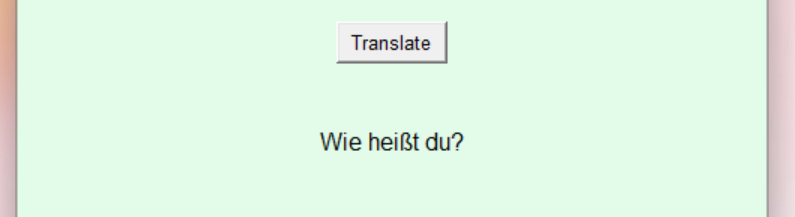
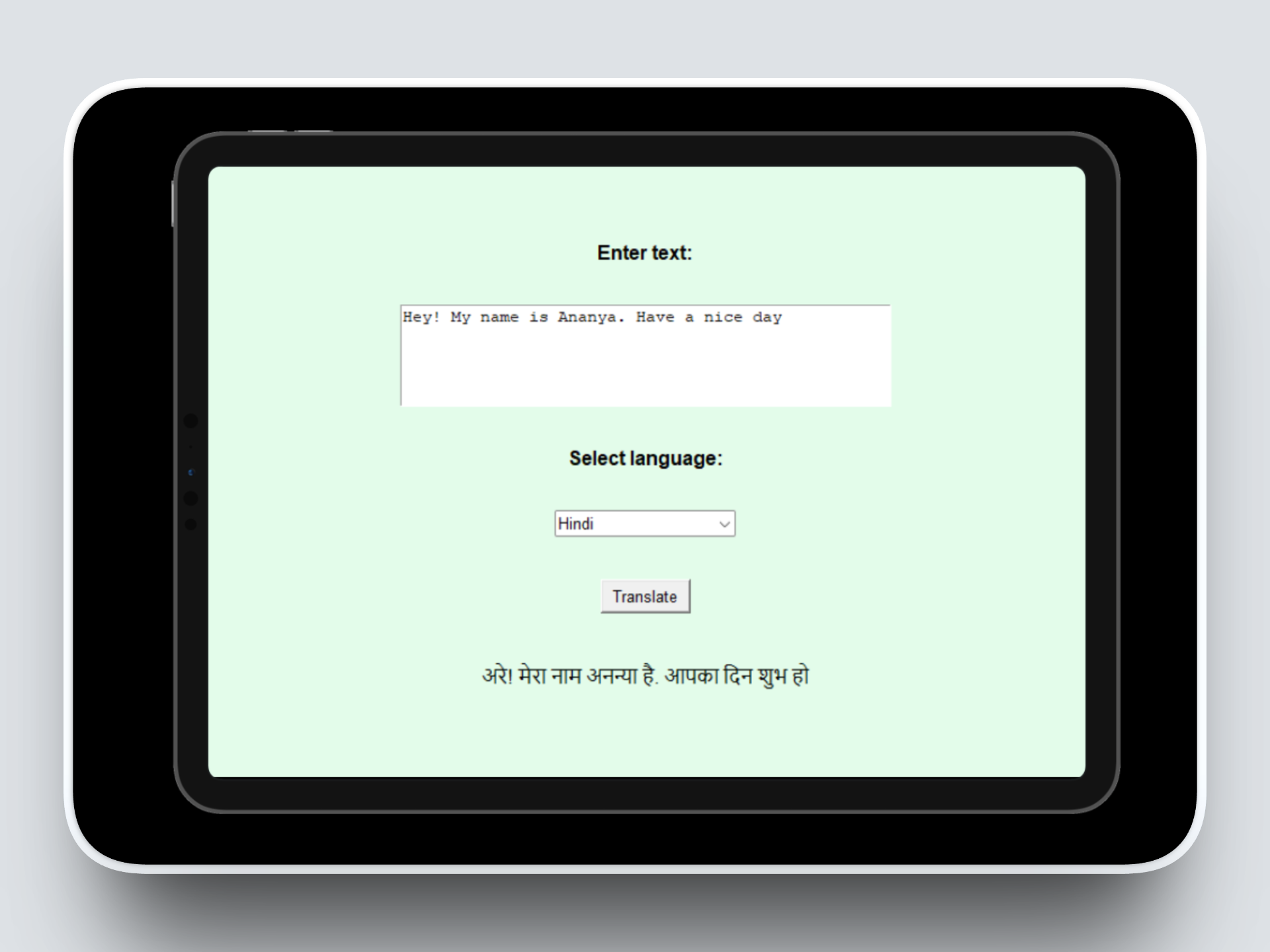
When the user presses the Translate button, the program takes the text from the input box and the language code from the dropdown, then translates the text into the selected language. After the translation is done, the program shows the translated text in a label below the button so the user can read it immediately. Here, I used the GoogleTranslator library to do the translation and Tkinter widgets to get the input and show the output. This way, the user gets their translated text instantly after clicking the button.
Roles & Contributions
Designed and structed the full graphical interface
Implemented the text input and output display
Created language mapping using a dictionary
Integrated the GoogleTranslator API
Connected button click to translation function
Technical Approach
User Input Module: Created a text box using tk.Text() to allow users to type a sentence. Used. get("1.0", tk.END) to retrieve the entered text when the Translate button is pressed.
This helped me understand how to capture multi-line input from users.
Language Selection System: Created a dictionary that maps language names to their language codes (e.g., "French": "fr"). I also used a ttk.Combobox dropdown menu to let users select their target language.
This helped me understand how data structures like dictionaries can connect user-friendly labels to backend values.
Translation Integration: Used GoogleTranslator from the deep_translator library to translate text. Set the source language to "auto" so the program automatically detects the input language.
This was my first time integrating an external library to perform a real-world function.
User Input Response: Connected the “Translate” button to the translate_text() function. When the button is clicked, the program:
Retrieves the input text
Gets the selected language
Sends the request to the translator
Displays the translated output
This showed me how user actions trigger backend logic.
Outcome
Built a fully functional language translator
Successfully integrated an external translation engine
Allowed translation into 9 different languages
Displayed real time translation output
Gained experience working with third party libraries
Skills Developed
1. GUI Development with Tkinter
Improved my ability to design structured and user-friendly interfaces.
2. Working with Dictionaries
Learned how to map readable language names to language codes.
3. Integrating External Libraries
Understood how to install and use external Python packages in my projects.
4. API Based Thinking
Began understanding how applications communicate with larger systems to perform advanced tasks.
5. User Input Processing
Handled text input, button interaction, and dynamic output display.
6. Integration to Language AI tools
Although I did not build the translation model myself, I learned how translation systems can be integrated into applications.
The UX Design Process
What I Did
Desktop Research
Ideation
Usability Testing
Development
Refinement
Tools I Used
Paper Prototype
Python
Tkinter
About Language Translator
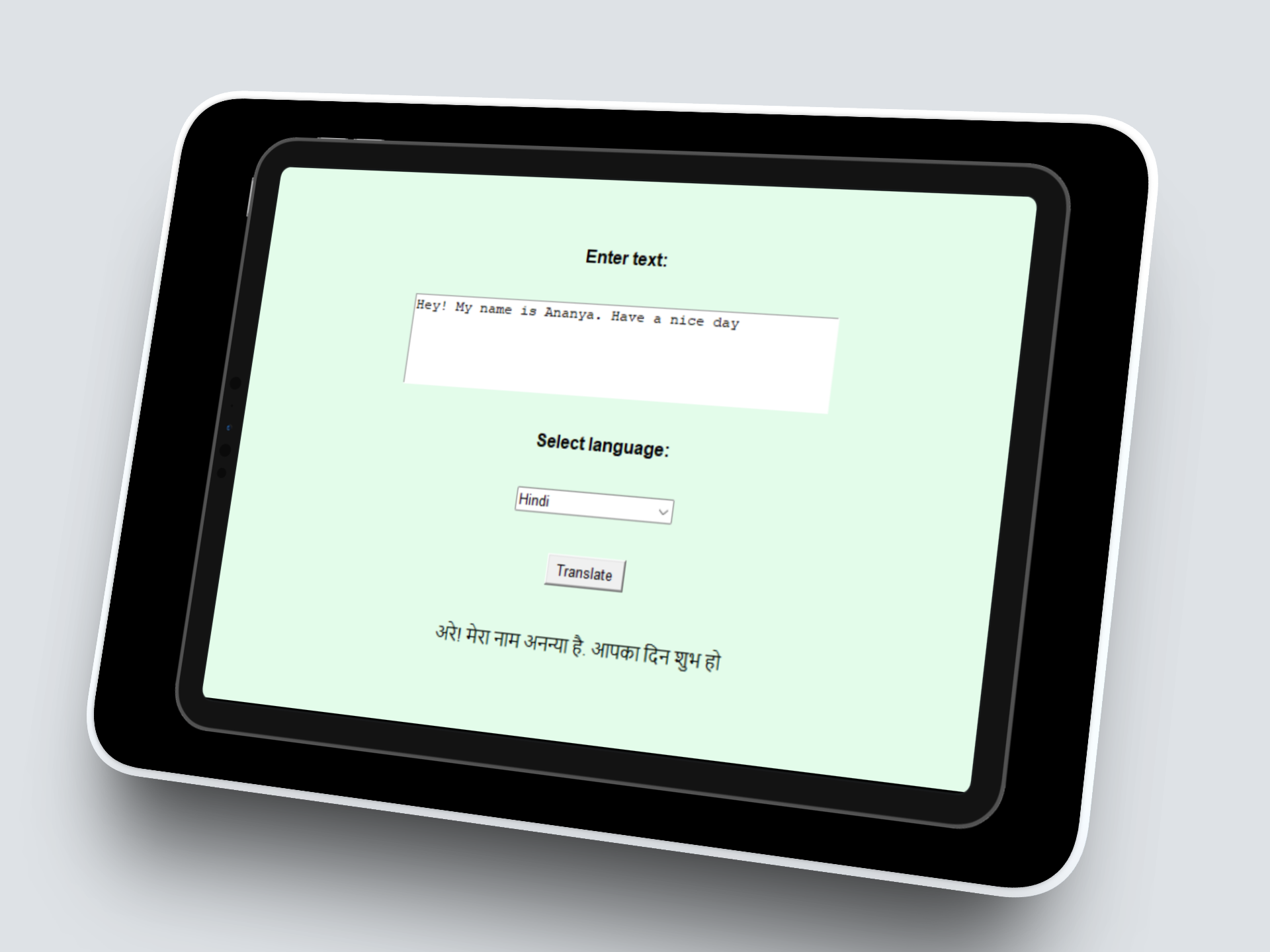
This project is a Language Translator made using Python, which allows users to enter text and translate it into multiple languages like Japanese, Hindi, Spanish, and more. It features a user-friendly GUI built with Tkinter, including a text input area, a language selection dropdown, and a display area for the translated text.
Project Goals
User-Friendly Language Translation Interface: To develop a user-friendly language translation application using Python that allows users to quickly translate text into multiple languages through a simple graphical interface.
Accurate and Efficient Translation Integration: To implement real-time text translation functionality by integrating an external translation library, ensuring accurate and efficient language conversion.
How I conducted Desktop Research
You conducted desktop research for this project by gathering information from online programming resources, documentation, and tutorials to understand how to build a language translator using Python. You studied the official Tkinter documentation and explored guides on using the deep_translator library to learn how to integrate translation functionality into a graphical user interface.
Ideation (Wireframing)
Next, I started the ideation process by wireframing sketches of the application layout to plan the structure and user interface of the translator. I outlined the placement of key components such as the text input area, language dropdown menu, translate button, and output display to ensure the design was simple, user-friendly, and visually organized before beginning development.

Conducting Usability Testing
I conducted final usability testing with three participants to evaluate how users felt while interacting with the application.
Participant 1 Feedback:
The first participant found the interface simple and easy to understand. They liked the clean layout and said the translation process was straightforward but suggested making the translate button larger so it stands out more.
Participant 2 Feedback:
The second participant felt the widget was user-friendly and appreciated the language dropdown feature. However, they mentioned that the output text could be displayed in a larger area to improve readability for longer translations.
Participant 3 Feedback:
The third participant said the design looked clean and organized. They suggested changing the colours of the background to make it look more aesthetically pleasing
Final Designs
After which, based on the feedback received during usability testing, I refined the application to improve both functionality and user experience. I increased the size of the translate button to make it more noticeable, expanded the output display area to improve readability for longer translations and changed the colour combination of the widget
I started developing the application using Python by implementing the graphical user interface with Tkinter and integrating the translation functionality using an external library. I built and tested each component step by step, ensuring that the text input, language selection dropdown, and translation output worked correctly together.
Two challenges I faced during development were understanding how the Text widget indexing system works and styling the ttk.Combobox widget. I overcame the first challenge by researching how "1.0" and tk.END are used to retrieve text correctly, and I solved the styling issue by learning how to use ttk.Style() to customize the dropdown’s appearance.