Wordle Clone
Project Overview & Goal
For this project, I wanted to create a desktop-based Wordle game clone using Python and Tkinter. The game lets users guess a 5-letter word in 5 tries. Tiles change color to show whether letters are correct and in the right position (green), correct but in the wrong position (yellow), or incorrect (gray).
The goal of this project was to learn GUI programming, event handling, and game logic in Python.
The Problem Solved
Most beginner Python games are console-based and simple. I wanted to create a visual and interactive game that:
Shows letters in a grid
Provides instant feedback to the user
Lets players play multiple rounds in one session
This project helped me move from scripts to interactive, event-driven applications.
Visuals & Explanation
Language Used
Python
Libraries Used
tkinter: For building GUI
random: For selecting random secret word
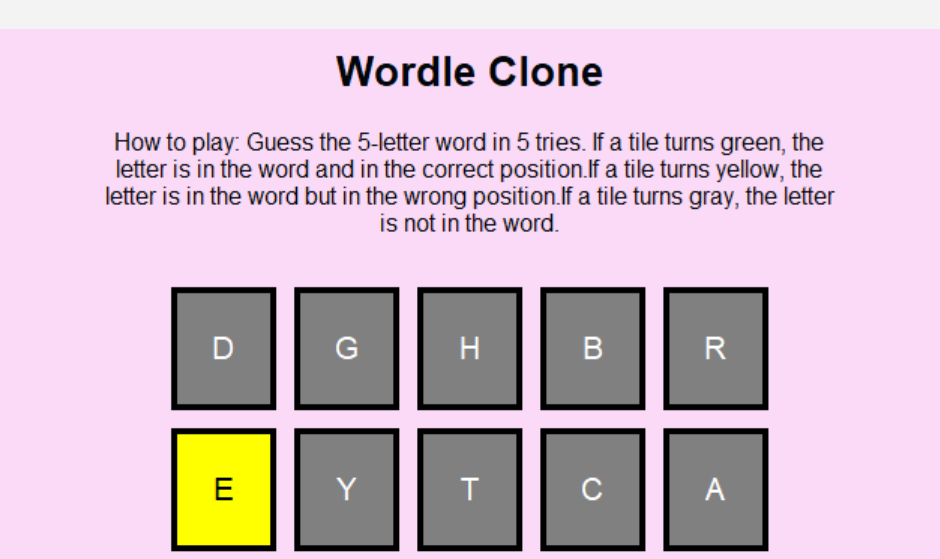
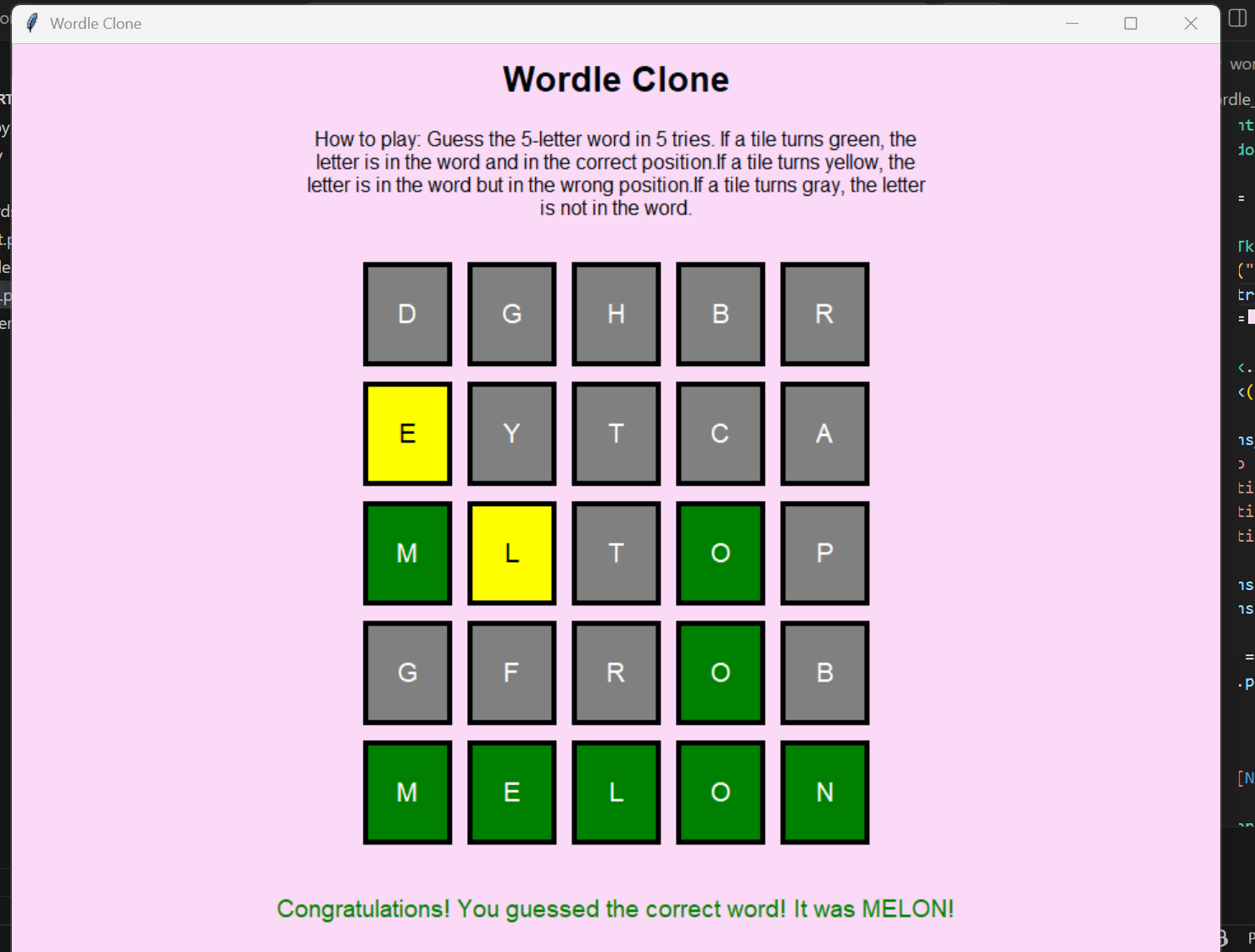
This part displays the first two rows of guesses in the game. Users can type in letters to try to guess the hidden word. When the user types a letter and presses Enter, the system checks their guess against the secret word. If a letter is highlighted yellow, it means that the letter is in the word but its currently in the wrong position. For example, the secret word for this game round was 'Melon'. As it can be seen in the visual above the tile with the word E has been highlighted in yellow. This tells us that 'E' is present in the secret word, but it is not the first letter.
I implemented it by using conditional logic in Python that checks each letter of the user’s guess and updates the tile colors. Green for correct letters in the right spot, yellow for letters in the word but the wrong spot, and gray for letters not in the word.
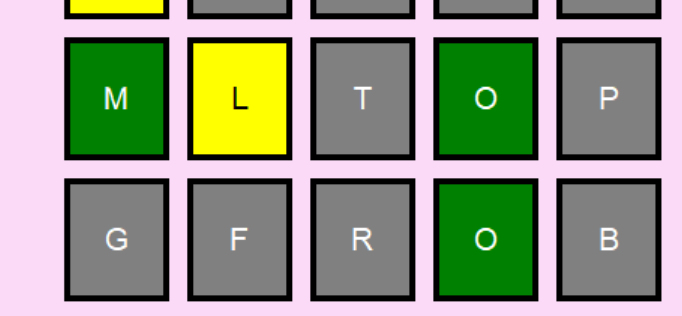
The next 2 rows of the game are shown in this visual. The tiles with the letter 'M' and 'O' are highlighted in green. This tells us that 'M' is the first letter of the secret word and 'O' is the fourth letter of the secret word (Melon).
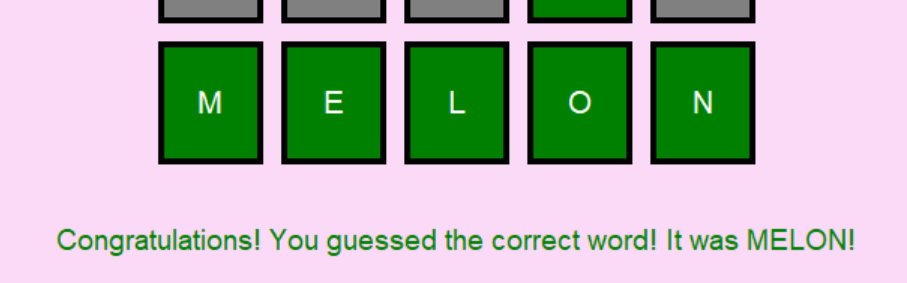
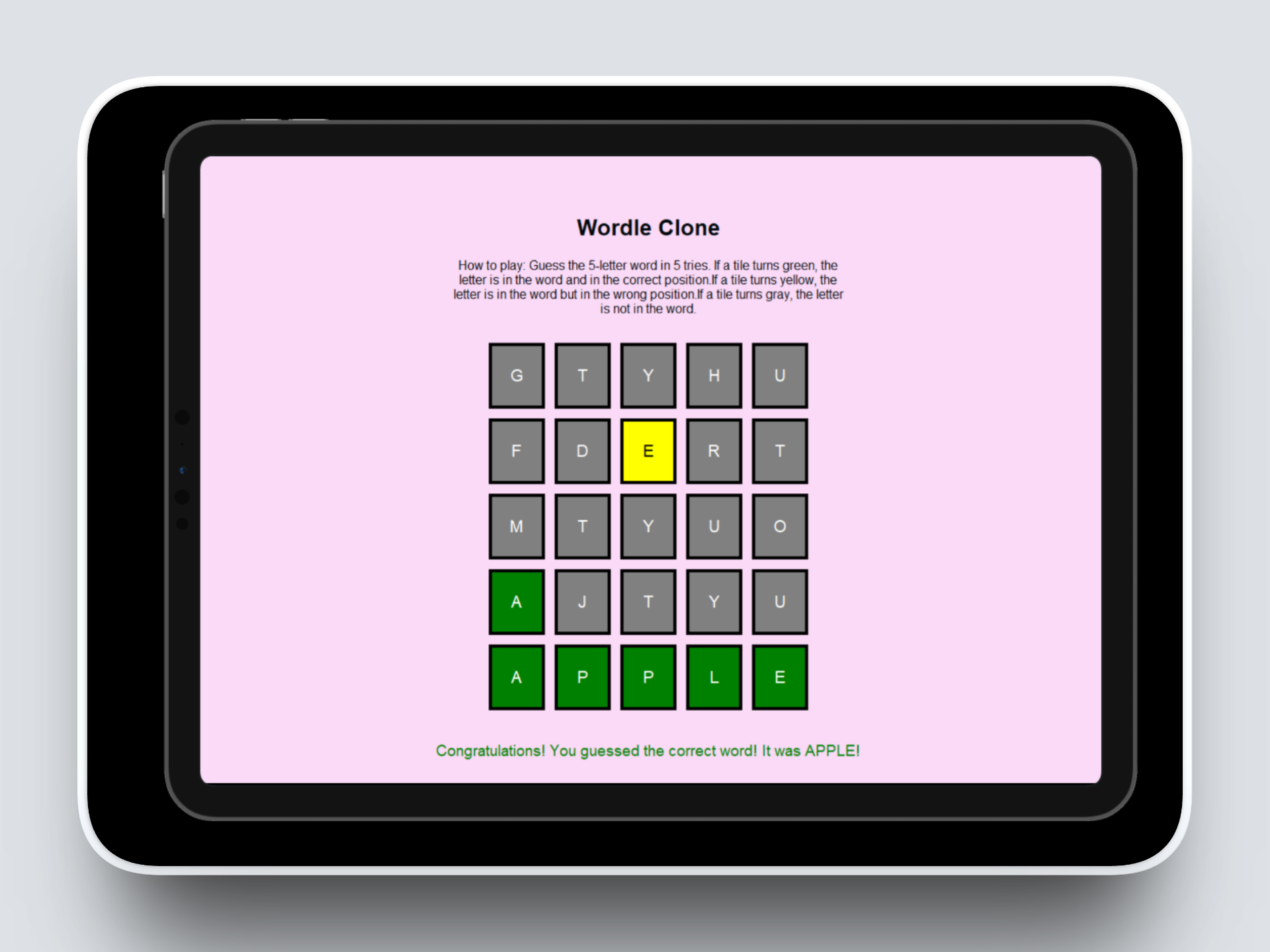
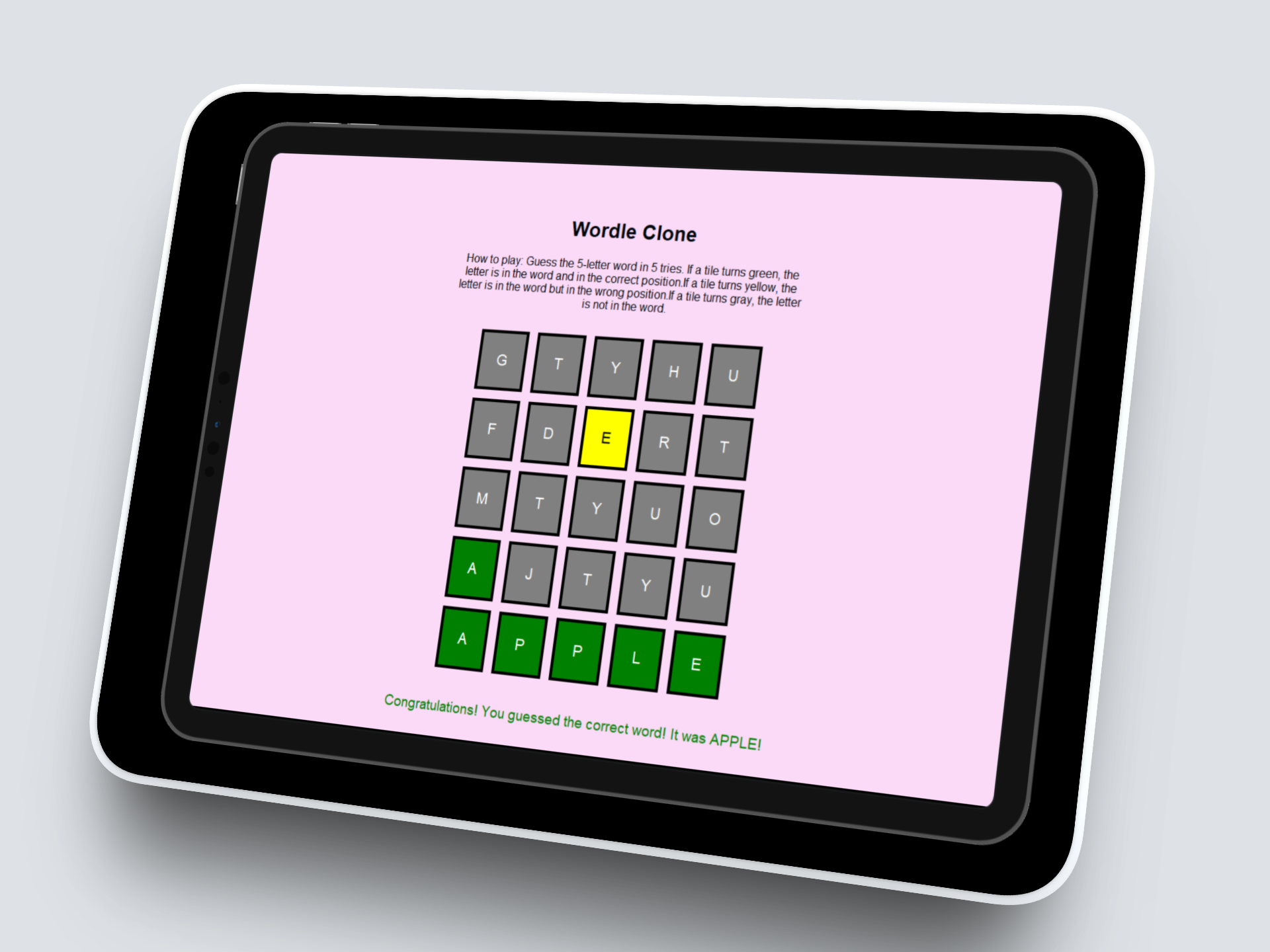
Next, when a user guesses the correct word within the 5 tries, the program immediately recognizes that all the letters match the secret word. It then updates the message area to display a congratulatory message in green, such as “Congratulations! You guessed the correct word!” with the correct word displayed. At the same time, the program prevents any further input, effectively ending the game. This allows the user to see that they won right away providing instant feedback and a satisfying sense of accomplishment.
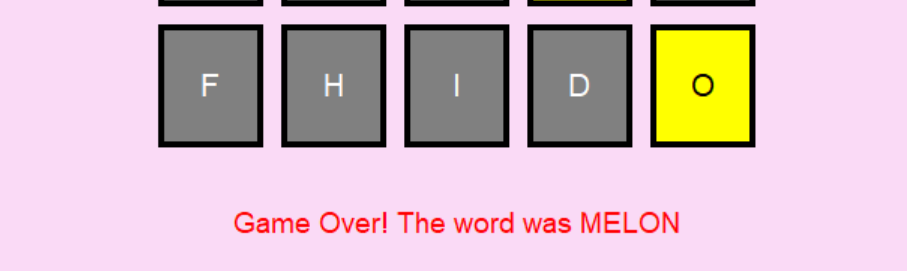
If the user doesn’t manage to guess the word within the 5 tries, the program automatically ends the game once the fifth guess is submitted. It updates the message area to display a “Game Over” message in red along with the correct word, so the user knows what the answer was. This gives clear feedback while showing that the attempt limit has been reached, helping the user understand the outcome of the game.
Role & Contributions
Designed and implemented the full game logic
Created a grid-based interface using Tkinter Label widgets
I used user input response to make the game react immediately when the player types a letter, presses backspace or hits enter.
Technical Approach
Grid Setup Module: Created a 5x5 grid of Label widgets using Tkinter. Each label represents a letter tile. This allowed me to display guesses visually instead of just in the console.
User Input Handling: Used root.bind("<Key>", key_pressed) to listen to keyboard events. Managed input so that:
Letters are added to the current tile
Backspace removes letters
Enter submits the guess
This taught me how to connect user actions to program behavior.
Guess Feedback Logic: When the user presses Enter, the program compares the guessed word with the secret word.
Green tile → Letter is correct and in the correct position
Yellow tile → Letter is in the word but wrong position
Gray tile → Letter not in the word
This helped me learn conditional logic and mapping outcomes to the UI.
Game State Management: Kept track of the current row and column to ensure the player can only type within the current guess. After each guess, moved to the next row or ended the game if all attempts were used.
This introduced me to basic state management in programs.
Outcomes
Created a fully playable Wordle game with a 5x5 grid
Implemented colour coded feedback to guide the player
Handled all user inputs with keyboard events
Gained experience building a desktop game with interactive GUI
Skills I Developed
1. GUI Development with Python
Learned to build a visual interface instead of a console game.
2. Handling Keyboard Input
Used event binding to read user input and update the grid in real time.
3. Conditional Logic
Implemented rules to check guesses and give feedback with colors.
4. Game State Management
Tracked the current row and column to manage user guesses and game progression.
5. Problem Solving
Figured out how to combine grid updates, input handling, and game logic into one working program.
6. Thinking about future AI possibilities.
Could add word suggestions or hints using AI.
Could track past guesses and analyze letter frequency patterns.
Lays the foundation for building intelligent game systems.
The UX Design Process:
What I Did
Desktop Research
Ideation
Usability Testing
Development
Refinement
Tools Used
Paper Prototype
Python
Tkinter
About Wordle Clone
The Wordle clone is a Python-based game that replicates the popular Wordle game. Players try to guess a hidden 5-letter word within a limited number of attempts. Each guess updates the grid with colors: green for correct letters in the correct position, yellow for correct letters in the wrong position, and gray for letters not in the word. The game includes an interactive grid, keyboard input, and messages that show when the player wins or loses.
Project Goals
Implement an interactive word-guessing game where players receive visual feedback (green, yellow, gray tiles) based on the accuracy of their guesses.
Build a user-friendly GUI using Python Tkinter that allows players to type letters, submit guesses, and see win or game-over messages
How I conducted Desktop Research
For this Wordle clone project, I conducted desktop research by exploring existing Wordle games online to understand the rules, gameplay mechanics, and visual layout. I studied how letters are colored to indicate correct, misplaced, or wrong guesses, and reviewed tutorials, Python documentation, and Tkinter guides to learn how to create an interactive grid and handle keyboard input. This helped me plan the game logic, design the interface, and implement the color-coded feedback system.
Ideation
After completing the desktop research, I drew sketches for ideation to plan the layout and flow of the game. I sketched the grid structure, showing 5×5 tiles, and visualized how the colors would change for correct, misplaced, and wrong letters. I also planned where to place the header, instructions, and messages, which helped guide the design of the GUI before starting coding.


Conducting Usability Testing
Next, I conducted usability testing to see how real users interacted with the Wordle clone and identify any issues. Three participants were asked to play the game while I observed their experience.
Participant 1 found the grid layout clear but suggested that the instructions could be a bit more concise.
Participant 2 liked the color-coded feedback but mentioned that it wasn’t immediately obvious what each color meant.
Participant 3 had no trouble typing letters or submitting guesses but recommended adding a small message explaining how many attempts remained.
Final Product
Finally, I started developing the Wordle clone using Python and Tkinter. I created the main window, added the header and instructions, and built a 5×5 interactive grid for the guesses. I implemented the game logic to handle keyboard input, check guesses against the secret word, and update tile colors to show correct, misplaced, or wrong letters. I also added a message label to display win or game-over messages. During development, I faced a couple of challenges: handling keyboard input correctly and updating the grid colors dynamically. I overcame them by properly managing key events and by using clear logic to update the grid colors correctly.